Nov 3, 2026 · @John
StaarCon 6 AfterGlow
The AfterGlow session Mediumship with Lenormand will be rescheduled.
You might already be a member
Previous StaarCon attendees already have a username and email address assigned to their StaarCast account. Simply ask for a password reset using the instructions provided below to gain access to the site. Not sure whether you have an account? Use Register anyway with your email address. If you already have an account, the emailed code signs you into it with the password you chose. Members can watch free members-only content and join free members-only meetings. Premium content is available to members by subscription or pay-per-view.
Equipment requirements for presenters
Presenters should ensure their computer is up to date. Older laptops and desktops may not be able to keep up with the demands of live sessions. We recommend a late model laptop or desktop computer for presenters who wish to livestream.
Recorded sessions
Some live sessions may not be recorded.
Members can watch a recorded session if they can’t attend a live session.
Service address
We need your service address to properly collect the taxes that may be due by your country, state or local jurisdiction. Your service address is the address where you will usually use our service.
If you haven’t logged in or set your service address yet you can follow the instructions below.
Before you start
Have these ready:
• The email address on your ticket or presenter account. Your StaarCast account was made for you when you bought a StaarCon ticket or signed up to present.
• Your password. If you’ve never set one, Step 2 shows you how.
• Your service address (street, city, state, ZIP). StaarCast must have it on file before any meeting opens. It is used for sales tax.
• A computer with an up-to-date browser: Chrome, Edge, Firefox or Safari. Headphones help; a camera and microphone are optional.
Step 1: Log in
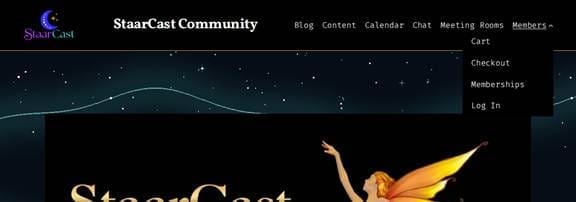
1. In the menu at the top right of the screen, point at Members, then click Log In. On a phone, tap the menu button at the top first, then Members, then Log In. You can also go straight to the login page.
2. Type the email address from your ticket or presenter account (your username also works). Then type your password and click Log In.
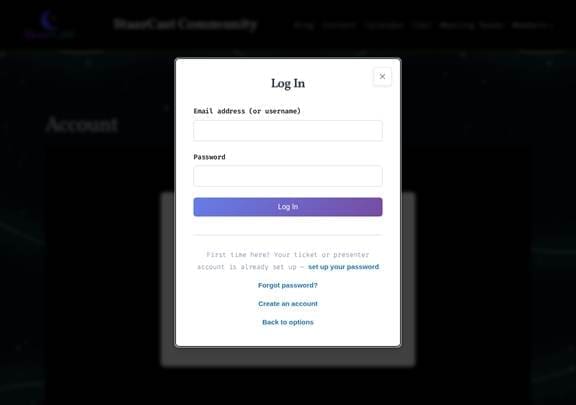
3. Once you’re logged in, the box closes and you stay on the page you were on. Your Account page lists your subscription and your profile.
If you have never set a password, or have forgotten it, use one of the links under the Log In button. Step 2 covers both.
Step 2: No password yet, or forgot it
Never logged in before? Your account already exists if you bought a StaarCon ticket or are presenting.
1. On the Log In box, click set up your password.
2. Enter the email address you used for your ticket or presenter sign-up, then click Send Setup Link.
3. Open the email from StaarCast, click the link and choose a password. Then go back to Step 1.

Forgot your password?
1. On the Log In box, click Forgot your password?
2. Enter your email and click Send Reset Link.
3. Open the email, click the link and choose a new password.

The email usually arrives within a minute or two. If it doesn’t, check your spam or junk folder. Use the newest email only: each new request replaces the link in the one before.
New to StaarCast? Create an account
1. In the menu, point at Members, then click Log In. On a phone, tap the menu button first.
2. In the box that opens, click Register.
3. Fill in your First Name, Last Name, Email and a Password (at least 8 characters), then click Create Account.
4. You’ll see Check your email. We email you a 6-digit code. Type it into the 6-digit code box and click Continue. You’re signed in.
The code works for 15 minutes. If it doesn’t arrive, check spam or junk, or click Send a new code.
Step 3: Check your service address
No meeting opens until a service address is on file. Your service address is the address where you will primarily use our service. We need it to properly apply taxes for streaming services.
1. On your Account page, scroll down to Service Address. If your address is shown, skip to Step 4.
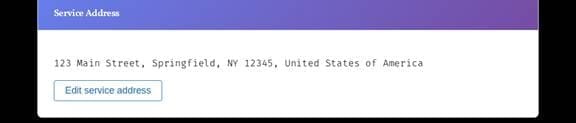
2. If it’s blank or wrong, click the button in that section. Fill in your country, street, city, state and ZIP code.
3. Click Verify & Save.
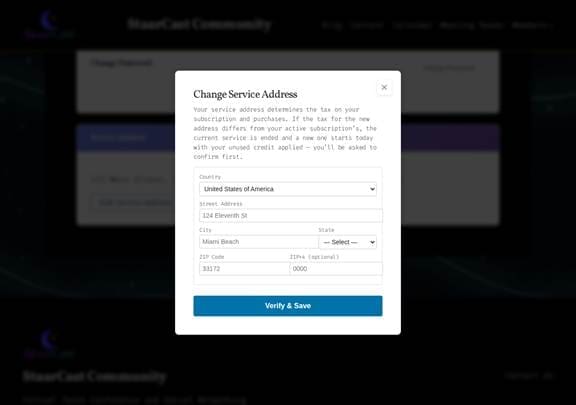
If you skip this, the session page asks for it at the door. It shows a note and an Add my service address button. Fill in the same form there and the page reloads with the meeting.
Step 4: Join a live session or watch a recording
1. You can open the recorded session page directly. You can also find sessions using the Calendar menu item. Future meetings and past recorded sessions can be found by their date, time and title in the calendar.

2. For a future session what you see depends on the time:
Before session opens: a card that says Not open yet. You can enter 15 minutes before the session starts. Leave the page open; it refreshes itself when the doors open.
When the session opens: click Click to Join Meeting. Your browser may ask to use your camera and microphone. Allow it or decline to just watch and listen. Don’t enable your camera if you do not wish to be recorded.
Waiting for Host: the presenter hasn’t started yet. The meeting begins when they join.
To chat with other attendees, open Chat in the top menu.
If the page shows Membership required: Log in to access this content, you’re not logged in. Go back to Step 1.

If something goes wrong
| What you see | What to do |
| “The email address or password is incorrect.” or the login won’t take | Check the email address for typos, then use Forgot your password? (Step 2). |
| No setup or reset email | Wait two minutes and check spam or junk. Make sure you typed the email from your ticket or presenter sign-up. |
| Not open yet | It’s more than 15 minutes before the session starts. Leave the page open; it refreshes itself. |
| Add my service address | Fill in your address (Step 3). The meeting opens after you save. |
| Membership required with a price or plans | Your account doesn’t include this session. Contact us before the session starts. |
| Waiting for Host | The presenter hasn’t started yet. Stay on the page. |
| The page is blank or stuck on loading | Reload the page. If that fails, try another browser (Chrome or Edge), or a private window. |
| No sound | Check the volume on your computer and in the meeting. In a meeting, click once on the page so the browser lets it play sound. |
Still stuck? Use Contact Us on staarcast.com and let us know the email on your account and what you see on screen, or email contact@staarcast.com from the address you want to use for your login.
Questions
Please reach out to Christiana at cgaudet@staarcon.com or John at jgaudet@staarcon.com. We are happy to answer any questions.
Our Sponsors and Marketplace Supporters